
Authenticate creates a user and sends a verification link for every new reservation at an enabled property. Manage Listings is where you choose which properties are enabled.
Prerequisites
- Your property management integration must be Active. If you see a Setup Guide link instead of the menu, connect your integration first.
- Wait for your properties to finish importing. A "Listings are currently being synced…" banner appears while this is in progress, and your list may be incomplete until it disappears.
Steps to Manage Listings
-
Open Manage Listings
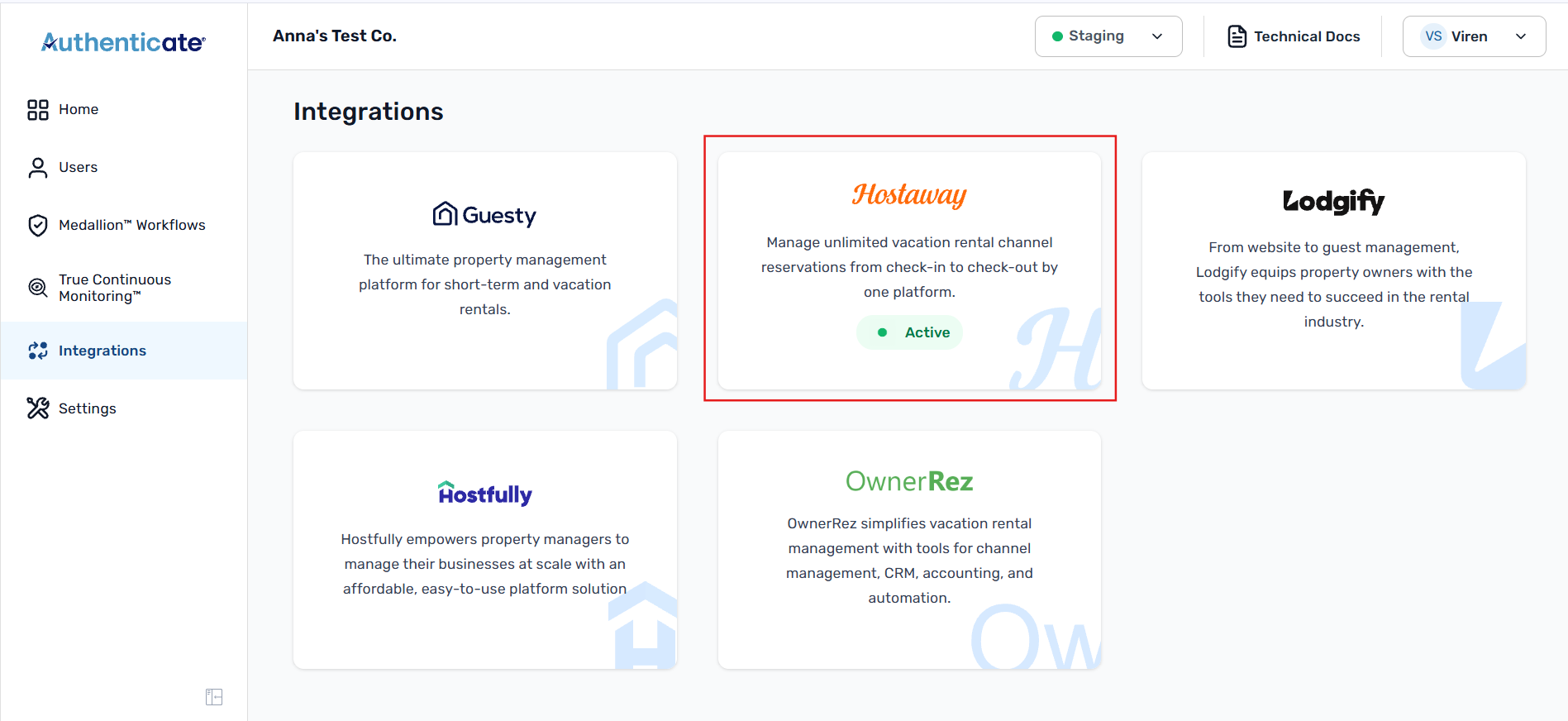
- Click Integrations in the sidebar and select your property management system.
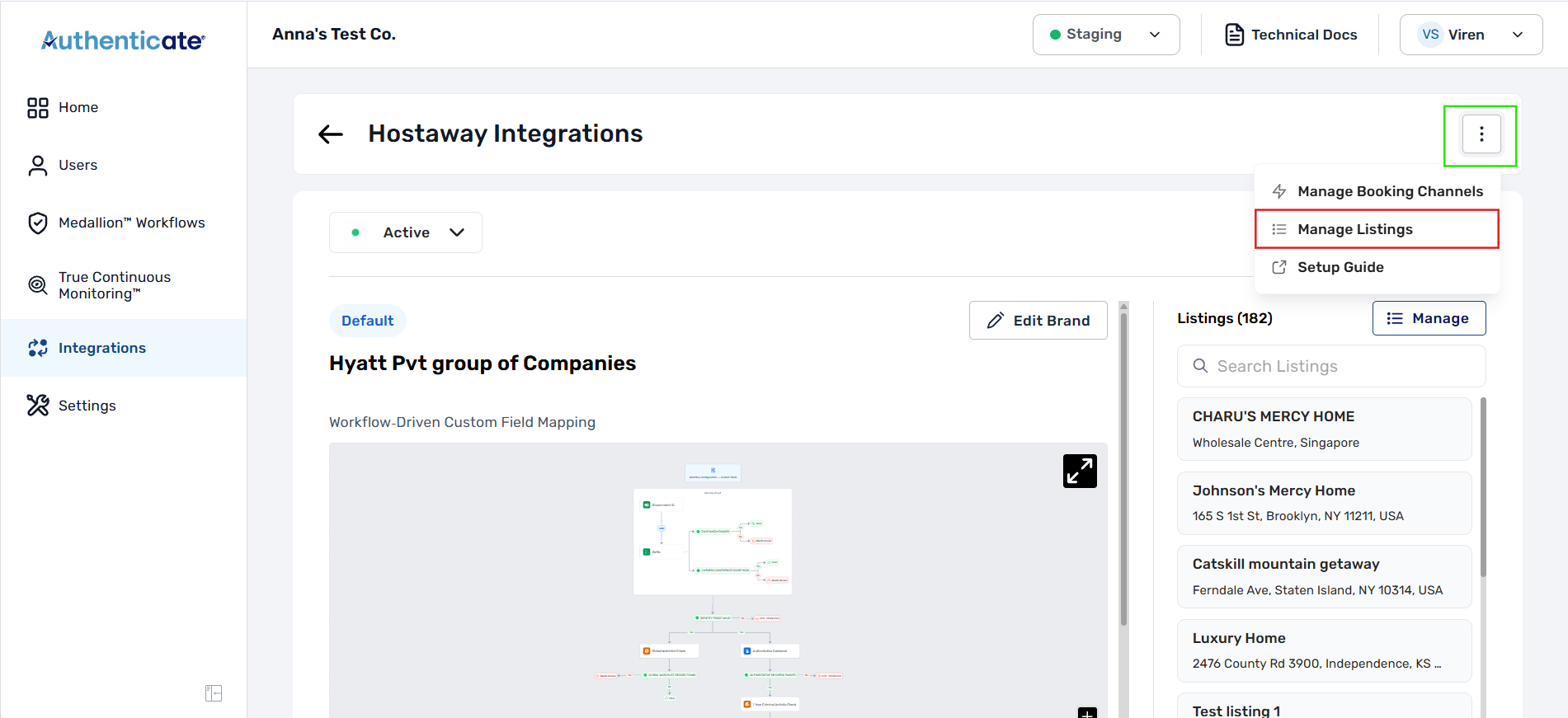
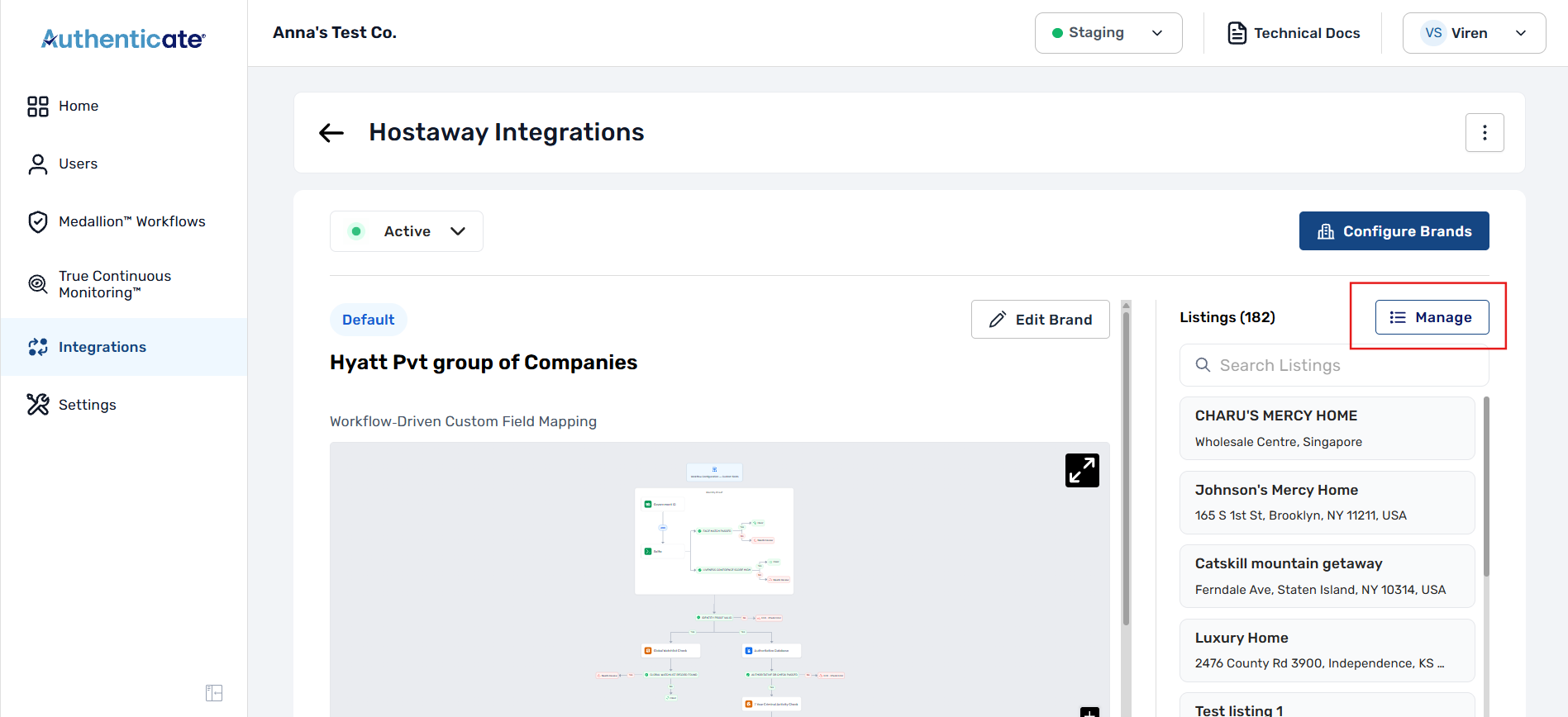
- Click the ⋮ button in the top right and choose Manage Listings, or click Manage next to the Listings heading on the same page.
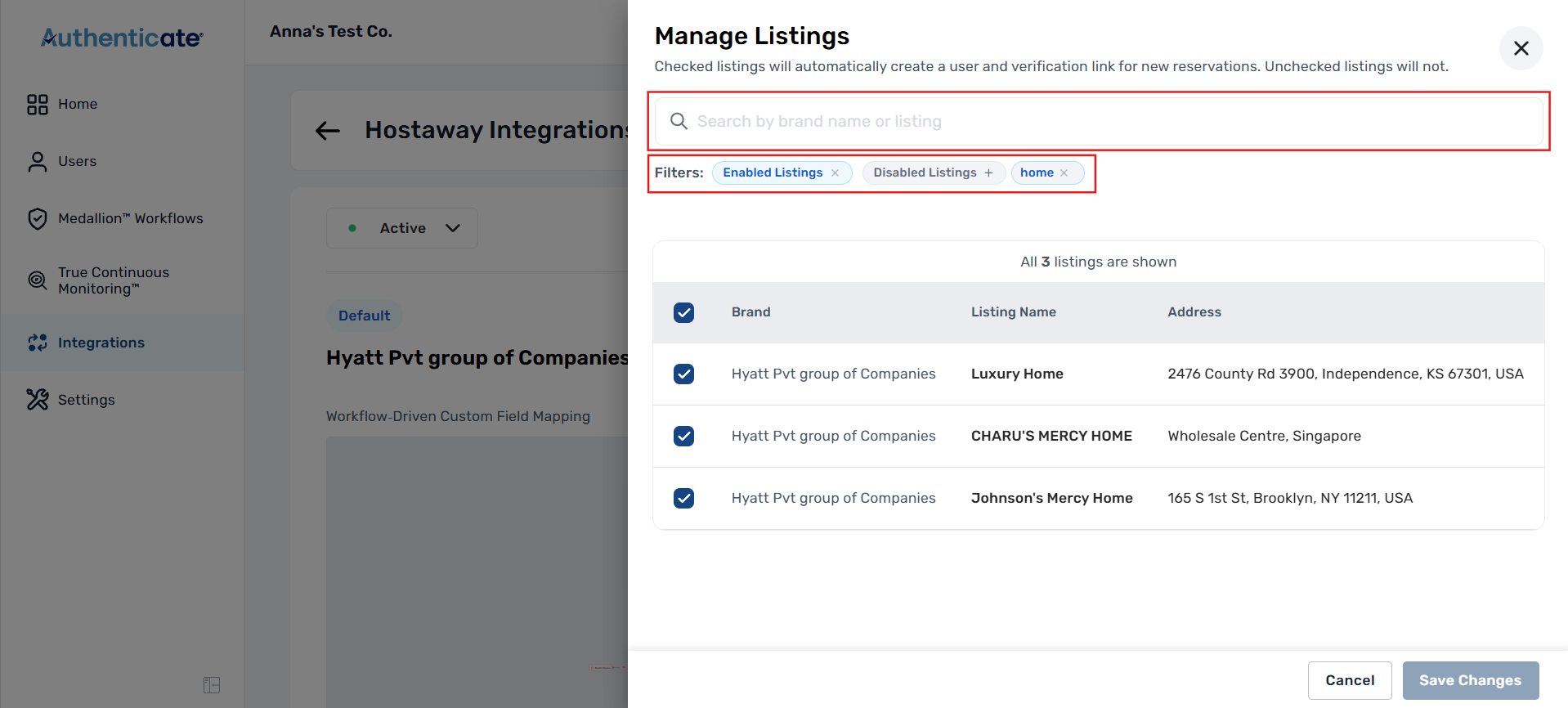
- The panel lists your properties by Brand, Listing Name, and Address.
-
Search and Filter Listings
- Search by brand or listing name. To search for several at once, type a term, add a comma, and press Enter; each term becomes a removable tag.
- Use the Enabled Listings and Disabled Listings filters to show only the properties being screened or skipped. Both are on by default. If you turn both off, the list is empty ("No Results found"); turn one back on.
-
Turn Properties On or Off
- Check a property to screen its guests. Uncheck it to skip them. Disabled properties are greyed out here, and show a Disabled tag in the Listings panel on the integration page.
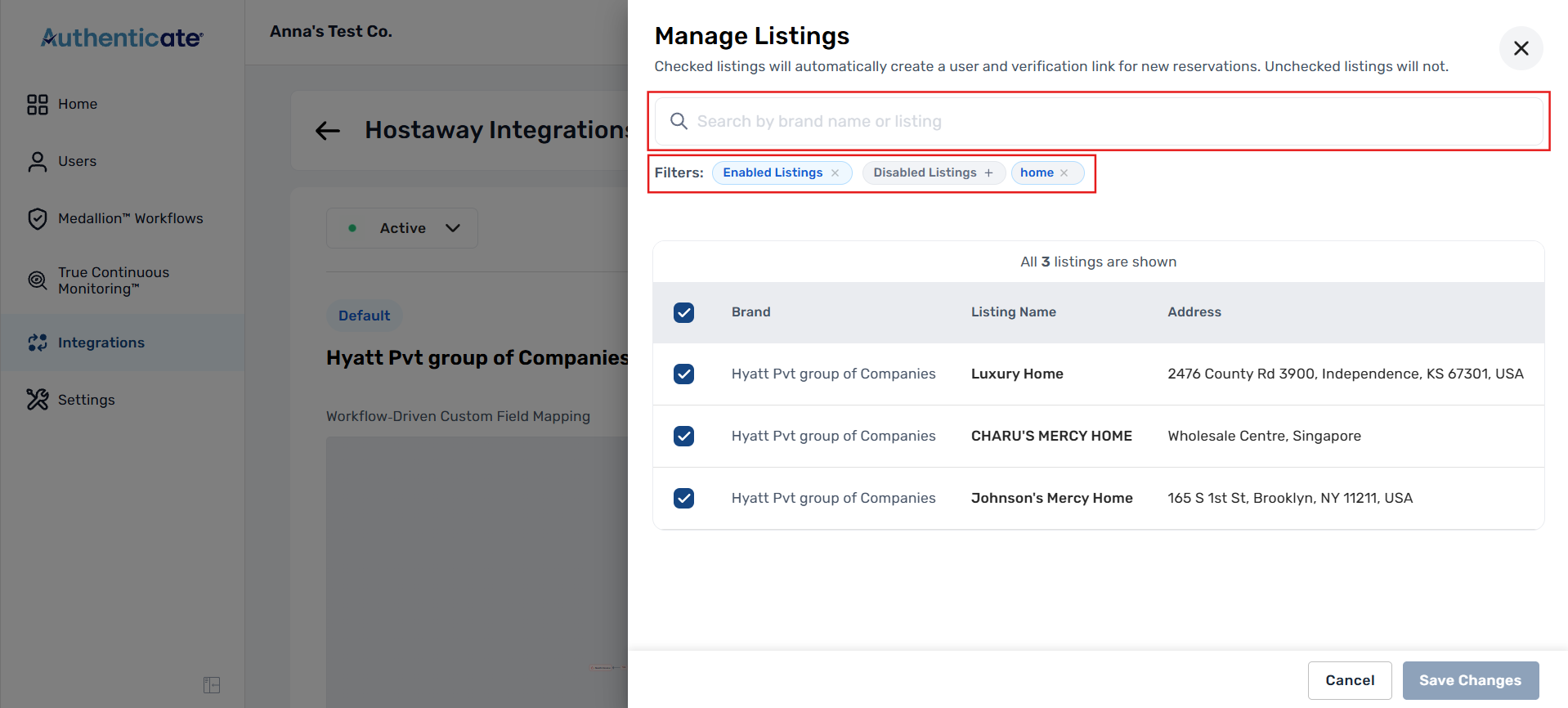
- Note: the checkbox in the header row only selects the properties currently loaded in the panel. On a large portfolio, scroll to the bottom first, or work through your list in groups using search and filters.
-
Save Your Changes
- Click Save Changes to apply your selection, or Cancel to discard it and close the panel.
Notes
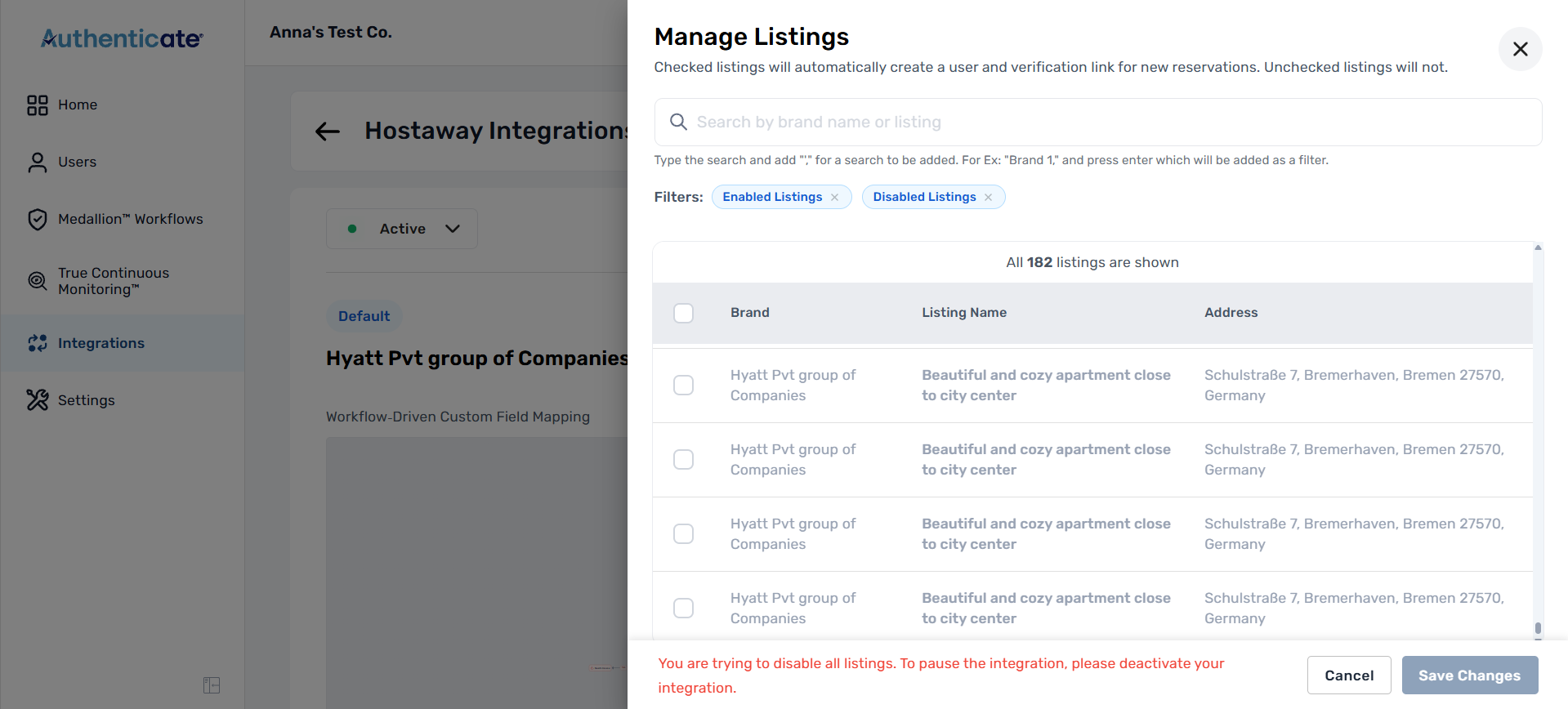
- You can't disable every listing from here. If your changes would leave nothing enabled, you'll see: "You are trying to disable all listings. To pause the integration, please deactivate your integration." Turn a property back on, or deactivate the integration instead: on the integration page, click Active, choose Deactivate, and confirm. Your settings are kept for when you reactivate.
- Manage Listings works together with Manage Booking Channels. A reservation only gets a verification link when its property is enabled here and its booking channel is selected in Manage Booking Channels.
Guest didn't get a verification link?
Check these three things:
- Your integration is Active.
- The property is enabled in Manage Listings.
- The booking's channel is selected in Manage Booking Channels.
If you have questions or something isn't working as described here, open a support ticket and our team will help you out.